Title here
Summary here
Everything runs in your browser at launcher.gblink.io — connect your adapter, confirm you are on the latest firmware, then pick a game or tool. No apps or drivers to install.
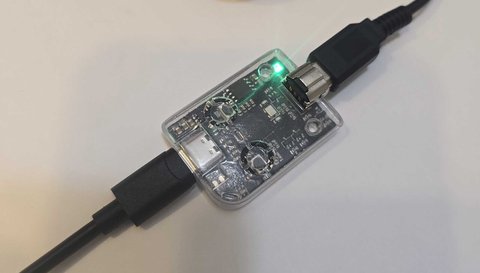
The LED should light up red when powered on ( LED guide). You are not connected to the browser yet — that happens in the next step.
Go to launcher.gblink.io.
In the Device Health panel on the right (below the game list on mobile):
Connected and the LED turns green.| Browser | What to click |
|---|---|
| Chrome / Edge | Select Game Boy Link in the USB picker → Connect |
| Firefox 151+ | Continue to Installation → Add → GBLink USB → Allow — with screenshots |
| Chrome on Android | Allow USB access if Android asks, then same USB picker as desktop |
Step-by-step prompts for every browser: Setting Up Your Adapter.
Stay on launcher.gblink.io with your adapter connected. The Device Health panel shows whether you are up to date:
| What you see | What to do |
|---|---|
Firmware shows a version (e.g. 2.2.1) and no update warning | You are good — go to step 4. |
| Update available: with an Update firmware button | Click Update firmware and wait for the flash to finish. Reconnect if prompted, then confirm the new version appears under Firmware. |
The launcher bundles the latest firmware — you do not need to download files for a normal update on Chrome or Edge.
Firefox users: The launcher can show your version over WebSerial, but one-click flashing needs Chrome or Edge. Use Flash manually instead on the launcher, or see Updating Firmware.
More detail: Updating Firmware.
Back on launcher.gblink.io with Device Health connected and firmware up to date:
Browse all clients and cartridge requirements in Games & Tools.
| Problem | Try this |
|---|---|
| Connect does nothing | Use Chrome, Edge, or Firefox 151+ — see browser requirements |
| Browser can’t find the adapter | Unplug and replug USB; try another port or cable |
Firmware version shows Unknown | Click Connect again; refresh the page and reconnect |
| Update stalls | Unplug the adapter, reconnect, and retry — or flash manually |
| Page refresh broke the link | Unplug the adapter or press reset, then reconnect in Device Health |
| Linux permission denied | Run ./scripts/setup-permissions.sh from the
firmware repo |